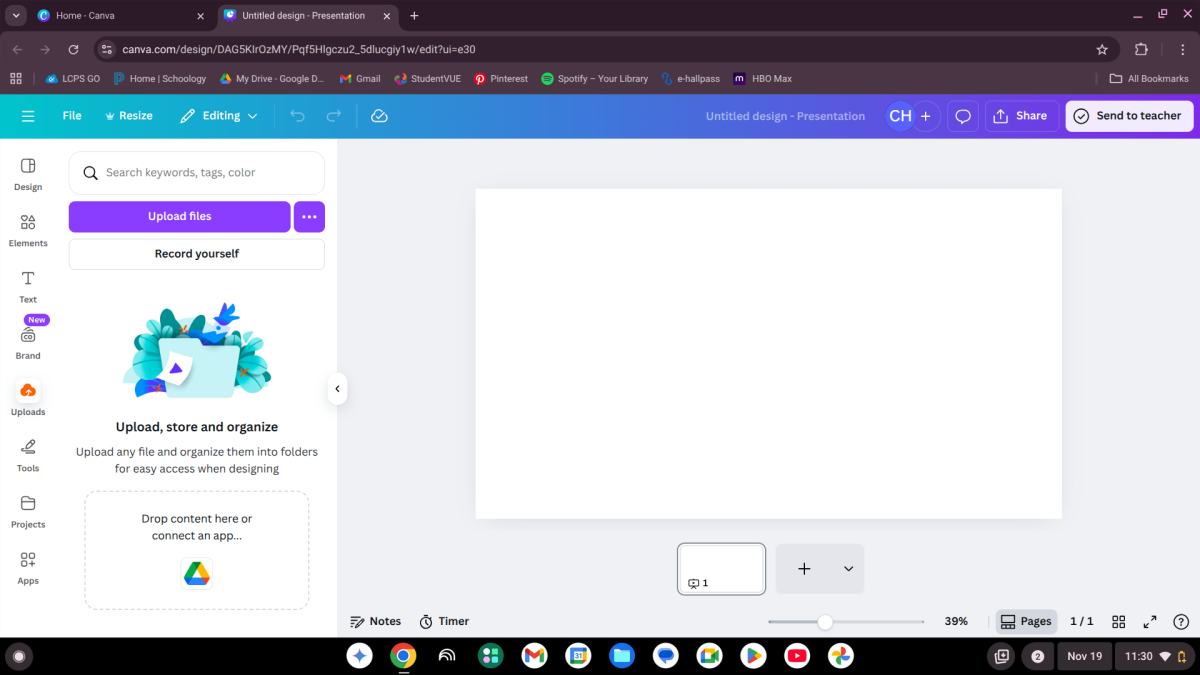
With the new Canva update, students can no longer upload pictures and videos onto their projects with their LCPS accounts. This has made it extremely difficult for students to complete assignments that require this. However, there is a way around this.
When you open canva, in the bottom left corner you can see your profile, accounts, teams, settings and more. You should already be in the team “[ARCHIVE] Loudoun County Public Schools.” This is what’s stopping you from having the option to upload. 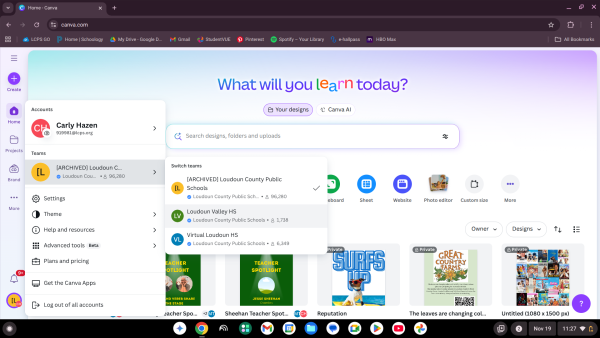
Instead, you should click on this team and you’ll have the option to switch to “Loudoun Valley HS.” Now, you’ll be able to upload pictures on projects you create in the account. However, if you have a project in progress, there is a way to move it to the new team.
If you go back to the “[ARCHIVE]” team, you can see your projects. You can hover over the project you want to move and click the three dots. With the options that come up, towards the bottom there should be an option to “copy to another team.” 
Two different teams will come up. You’ll want to choose the green “Loudoun Valley HS.” Once you copy it in, you’ll be able to switch teams and you’ll see it under projects.

Now, you’ll be able to upload pictures into your Canva projects without having to wait until you’re home or go through the process of creating a new account.